
One-click setup
One-click setup with magpie
The recommended method. Add 2api to magpie with one click, then switch Claude Code, Codex and other tools in one window, with no config files to edit.
magpie is an open-source desktop tool (MIT license). It runs a local gateway on your computer and connects dozens of tools, including Claude Code, Codex, Gemini CLI and OpenCode, to the providers you choose. Add 2api to magpie once. After that, switching tools or models takes a few clicks.
One-click setup (recommended)
Section titled “One-click setup (recommended)”For Claude, click the first button and use a key in the CC-Max group. For GPT, click the second button and use a key in a GPT group (see Groups).
- 1Click a button below
- 2In the magpie window, click Get key (获取密钥) and copy your key
- 3Paste it back and click Add


No magpie yet? Click anyway: the link takes you to the download first. The link doesn't contain your key.
After you click a button, magpie shows the confirmation dialog below. Click Get key (获取密钥) to open the 2api key page, copy your key, paste it back and click Add (添加). If you added 2api before, the button reads Replace (替换). To use both GPT and Claude, click each button once.
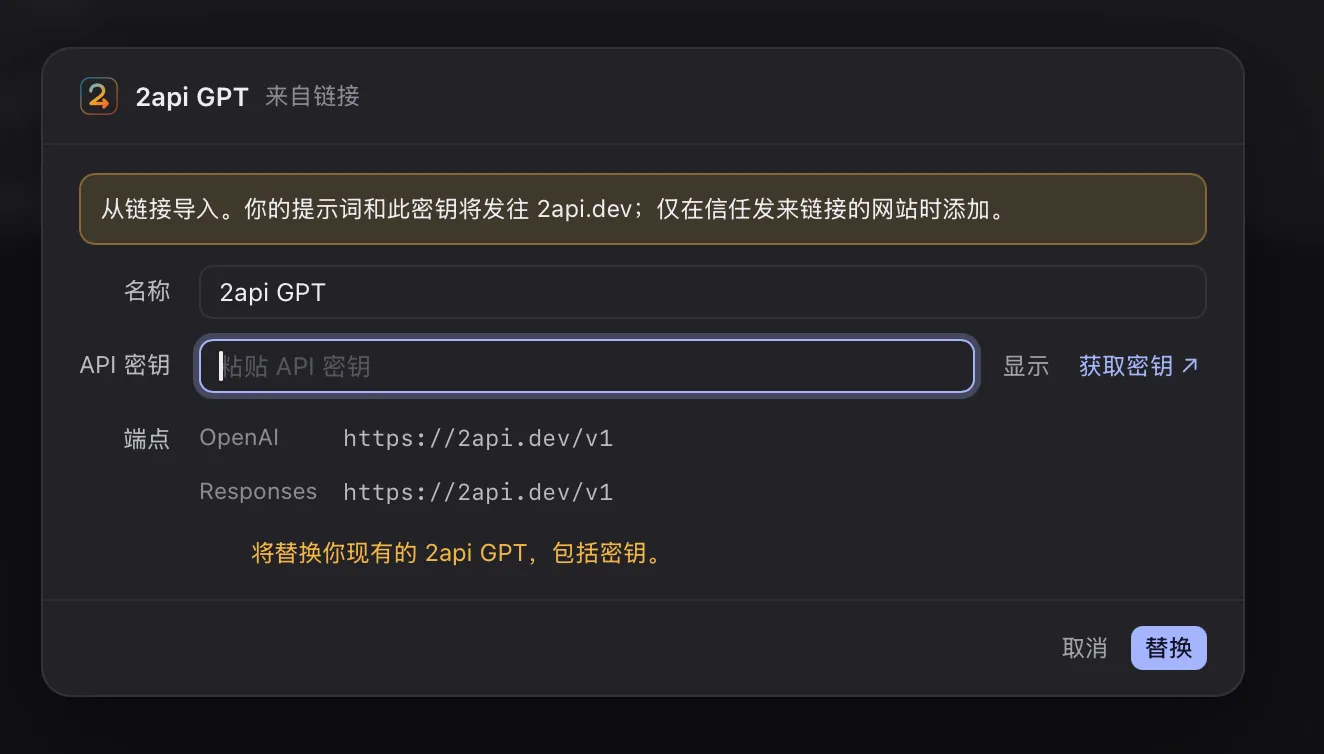
Once it is added, connect your tools to 2api on magpie’s Agent page. See Use 2api in your tools below.
Install magpie
Section titled “Install magpie”Download the macOS version from usemagpie.ai and drag it into Applications. You can also install it with a command:
curl -fsSL https://usemagpie.ai/install.sh | shDownload the Windows installer from usemagpie.ai. The installer is not signed. If SmartScreen appears the first time you run it, click More info, then Run anyway.
curl -fsSL https://usemagpie.ai/install.sh | shThe GUI needs GTK3 and WebKitGTK 4.1. Without them you can only use the command line and magpie tui.
If downloads are slow in mainland China, you can make the install script use a GitHub download mirror or a local proxy:
curl -fsSL https://usemagpie.ai/install.sh | sh -s -- --mirror https://gh-proxy.com/curl -fsSL https://usemagpie.ai/install.sh | sh -s -- --proxy http://127.0.0.1:7890Use 2api in your tools
Section titled “Use 2api in your tools”-
Open the Agent page, find Claude Code (or Codex), and turn on the Connect (接入) toggle on its right.
-
Open the model dropdown on the right and pick a model with the 2api icon: for Claude Code, one under 2api Claude; for Codex, one under 2api GPT. Don’t choose
auto/.... It routes requests to other providers. -
Start a new session before you use it. Codex only picks up the change after you fully quit and reopen it.

Check that it works
Section titled “Check that it works”- In Providers, open the 2api row → Endpoints (端点) → Test (测试). It sends one small real request, which uses a tiny amount of quota.
- Or send a message in Claude Code. magpie’s Routing (路由) page shows which provider the request went through.
Add manually
Section titled “Add manually”If the one-click buttons don’t open magpie, add 2api by hand:
-
Open magpie and go to Providers (供应商) → Add provider (+ 添加供应商) → Custom provider (自定义供应商).
-
Enter
2api Claudeor2api GPTas the name. -
Enter the protocol and API address that match the key’s group:
Key’s group Protocol API address CC-MaxAnthropic-compatible https://2api.devA GPT group OpenAI Responses https://2api.dev/v1 -
Paste the API key, click Fetch models (获取模型), then click Add.
- magpie must stay open. Your tools connect to the magpie gateway on your computer. If you quit magpie, they can’t connect. To have it run at startup:
magpie daemon install. - Restoring your setup when you stop using it: Run
magpie uninstall. Each tool’s config is restored. Don’t just delete magpie. Your tools would keep pointing at a local address that no longer exists. - Proxy software: If Clash, Surge or a similar app has TUN mode or the system proxy turned on, add direct rules for
127.0.0.0/8and::1. Otherwise you get 502 errors. - Detect or test returns 503: If the Claude group only allows the Claude Code client, magpie’s Detect protocol (检测协议) and Test checks are rejected. This is normal. Real use in Claude Code is not affected.
- Codex is charged more than expected: Some users report a low cache hit rate when Codex goes through magpie. If Codex clearly costs more than a direct connection, use the manual Codex setup instead.
Add from the command line
Section titled “Add from the command line”magpie provider add "2api Claude" id=2api-claude anthropic=https://2api.dev key=sk-your-cc-max-keymagpie provider add "2api GPT" id=2api-gpt url=https://2api.dev/v1 responses=https://2api.dev/v1 key=sk-your-gpt-keymagpie claude 2api-claude/model-namemagpie codex 2api-gpt/model-nameThe steps on this page are adapted from the official magpie documentation. The screenshots show magpie’s Chinese interface. magpie updates often, so the interface text may differ slightly.